View Your Schedule
Learn how to access and navigate your work schedule in Crew App
What You'll Learn
- How to access your personal schedule
- Understanding shift details and visual indicators
- Switching between day and week views
- Viewing your team's schedule
- Navigating to different dates
Work in Progress
This guide is currently being vetted for accuracy. If you have questions or need assistance, please contact us directly.
Overview
The Schedule feature gives you instant access to your work assignments, including project locations, times, activities, and equipment. You can view your personal schedule or see what your entire team is working on.
Key Benefits:
- Always know where you're working
- See shift times and activities at a glance
- View equipment assignments
- Check your team's location
- Plan your week ahead
Accessing Your Schedule
Two Ways to Access Your Schedule
You can access your schedule in Crew App using either of these methods:
Option 1: Schedule Widget (Home Screen)
- Open the Crew App on your device
- On the home screen, locate the Schedule widget
- Tap the widget to open your schedule
Option 2: Menu Navigation
- Open the Crew App on your device
- On desktop: Look at the top menu bar and select Resources > Schedule
- On mobile: Tap the hamburger menu (☰) on the right, then select Resources > Schedule
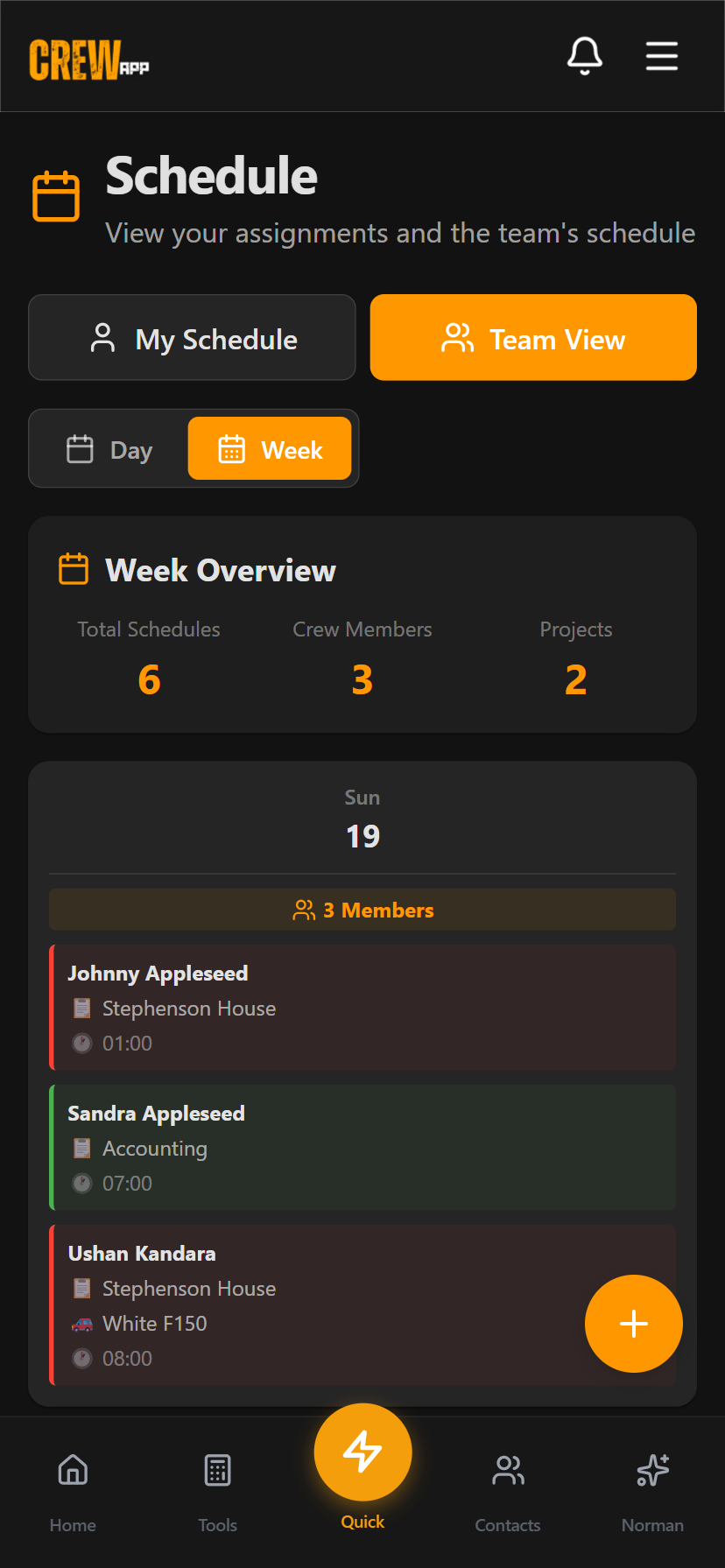
Understanding Your Schedule View
Default View: Individual Schedule
When you first open the Schedule page, you'll see your personal schedule for today.
What You'll See:
- Current date displayed at the top
- Your shift card(s) for the selected day
- View mode toggle (Individual/Team)
- Date range selector (Day/Work Week/Full Week)
- Navigation arrows to move between days/weeks
Understanding Shift Cards
Each shift appears as a card with color-coded information:
Shift Card Elements:
- Project Name (colored header)
- Color-coded for easy recognition
- Example: "Balmoral Renovation" in blue
- Time Range
- Start and end times
- Example: "7:00 AM - 3:30 PM"
- Location
- Project address or site location
- Activity Assignment
- Your specific role or task
- Example: "Framing", "Electrical", "Cleanup"
- Equipment Assigned
- Vehicles or tools you'll use
- Example: "Truck #3, Bobcat, Scaffolding"
- Additional Notes
- Important information from your supervisor
- Special instructions or requirements
- Project Summary (bottom of card)
- Shows total crew members at this project
- Example: "3 crew members at Balmoral today"
Color-Coded Projects
Each project has a unique color to help you quickly identify your assignments:
- Projects are assigned colors by administrators
- Same project = same color across all days
- Helps you visually scan your week
Switching View Modes
Individual vs. Team View
Toggle between viewing just your schedule or your entire team's schedule.
Individual Mode (Default)
- Shows only your assigned shifts
- Best for planning your personal work week
- Less cluttered, faster to scan
To Use:
- Look for the view toggle near the top
- Ensure "Individual" is selected (highlighted)
Team View
- Shows everyone's shifts on your crew
- See who's working at each project
- Useful for coordinating with coworkers
To Use:
- Tap the view toggle at the top
- Select "Team"
- Shifts are now shown for all crew members
Switching Between Day and Week Views
Choose how much of your schedule to display at once.
Day View
- Shows shifts for a single day
- Best for focusing on today's assignments
- Least scrolling required on mobile
To Use:
- Tap "Day" button at the top
- Use arrows to navigate to different days
Work Week View (Monday - Friday)
- Shows shifts for Monday through Friday
- Best for planning your work week
- Skips weekends
To Use:
- Tap "Work Week" button
- Scroll to see all five days
- Each day shows as an expandable section
Full Week View (Sunday - Saturday)
- Shows shifts for all seven days
- Includes weekend assignments
- Complete weekly overview
To Use:
- Tap "Full Week" button
- Scroll through all seven days
Viewing Shift Details
Expanding Shift Information
Tap any shift card to view complete details.
What You'll See:
- All information from the card preview
- Complete notes from your supervisor
- Full list of assigned equipment
- Other crew members on the same shift (if Team View)
To View:
- Tap anywhere on the shift card
- Details expand below
- Tap again to collapse
Shift Status Indicators
Shifts may show different statuses:
| Status | What It Means |
|---|---|
| Confirmed | Shift is finalized and confirmed |
| ⏳ Tentative | Shift may change, check for updates |
| Active | You're currently working this shift |
| Completed | Shift is in the past |
Team View
Understanding Team Schedules
When viewing your team's schedule, shifts are organized to help you see who's working where.
Team View Features:
- Crew member names shown on each shift card
- Projects grouped together (all crew members at Balmoral site appear together)
- Project summaries show total crew size
- Color coding helps identify projects quickly
Finding Coworkers
To See Who's Working at Your Project:
- Switch to Team View
- Find your project (by color or name)
- All crew members assigned to that project appear together
Example:
Balmoral Renovation (Blue)
├─ John Smith: 7:00 AM - 3:30 PM (Framing)
├─ You: 7:00 AM - 3:30 PM (Electrical)
└─ Sarah Johnson: 8:00 AM - 4:00 PM (Cleanup)

3 crew members at Balmoral today
Tips & Best Practices
Daily Check-In
- Check your schedule every morning to confirm times and locations
- Projects may be updated the day before
- Look for supervisor notes with special instructions
Weekly Planning
- Review your work week on Sunday evening to prepare
- Note any early starts or equipment needs
- Check if you need to bring special tools or certifications
Equipment Assignments
- Take note of assigned equipment before leaving home
- If equipment is listed, you may be responsible for pickup
- Bring appropriate licenses (e.g., forklift certification)
Project Colors
- Learn your common projects' colors for quick recognition
- Blue = Balmoral, Orange = Maritime, etc.
- Makes scanning your week much faster
Team Coordination
- Use Team View to coordinate carpooling to the same site
- See who else is working your shift
- Plan lunch breaks with coworkers
Troubleshooting
Possible Reasons:
- No shifts have been assigned yet
- You're looking at the wrong date
- There's a connection issue
Solutions:
- Check that you're viewing the correct date (tap "Today")
- Pull down on the screen to refresh
- Check if you're in Individual mode (not Team mode)
- Contact your supervisor if shifts should be there
- Ensure you have internet connection
Solution:
- Pull down on the schedule page to refresh
- Force quit and reopen the app
- Check your internet connection
- Schedule updates in real-time when connected
Solution:
- Ensure you're in Team View (toggle at top)
- Team view may be disabled by your company
- Contact your administrator if needed
What to Do:
- Basic shift details (time, project) should always appear
- Notes and equipment are optional fields
- Contact your supervisor for clarification
- Check back later as admins may update details
Answer: No, only administrators can create and edit schedules. If you need changes:
- Contact your supervisor
- Use your company's form links (Quick Actions ⊕ button)
- Call or text your admin
Need More Help?
If you have questions about your schedule or need assistance, here are your options: