Managing Crew Member Schedules
Learn how to create, assign, and manage your team's work schedule
What You'll Learn
- Creating new shifts for crew members
- Editing and duplicating existing shifts
- Managing projects and equipment
- Filtering schedules by crew member
- Using views effectively for schedule management
- Best practices for schedule planning
Work in Progress
This guide is currently being vetted for accuracy. If you have questions or need assistance, please contact us directly.
Overview
Schedule Management gives you complete control over crew member assignments, project planning, and resource allocation. Create shifts, assign equipment, manage projects, and ensure your crew knows exactly where to be and when.
Key Capabilities:
- Create and edit shifts with click-to-edit interface
- Assign crew members to projects with specific activities
- Manage multiple equipment per shift
- Duplicate shifts for recurring schedules
- Filter by crew member for individual planning
- View day, work week, or full week schedules
- Track schedule statistics and coverage
Accessing Schedule Management
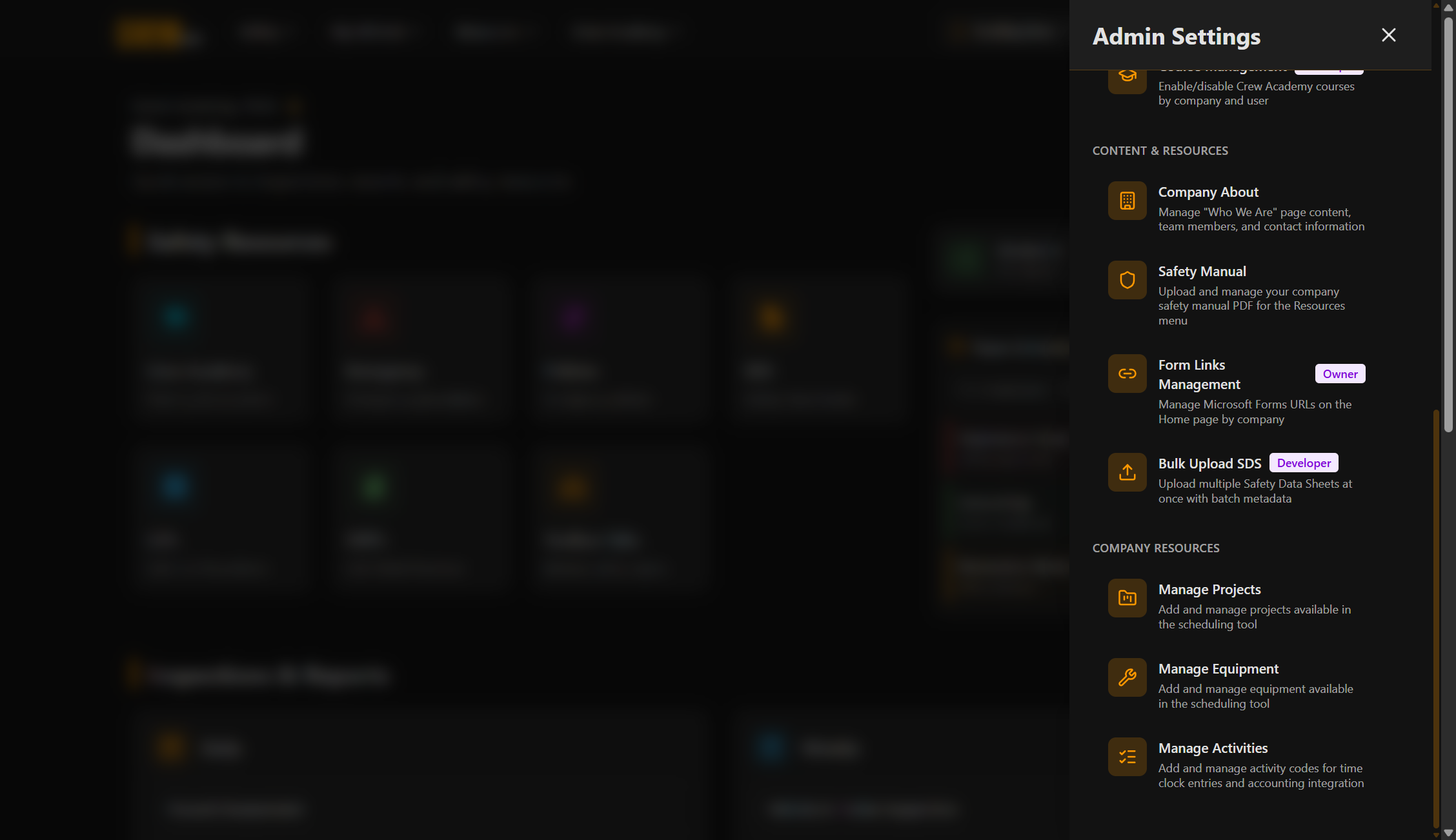
Schedule Management is accessed through the Admin Settings Panel.
- On desktop: Access the menu from the top navigation bar
- On mobile: Tap the hamburger menu icon (☰) on the right
- Select "Admin Settings Panel" from the menu
- The panel slides in from the left
- Look for the Schedule Management card (clipboard icon)
- Tap the card to open Schedule Management
- The schedule page loads with the current week
Understanding the Admin View
Main Interface Components
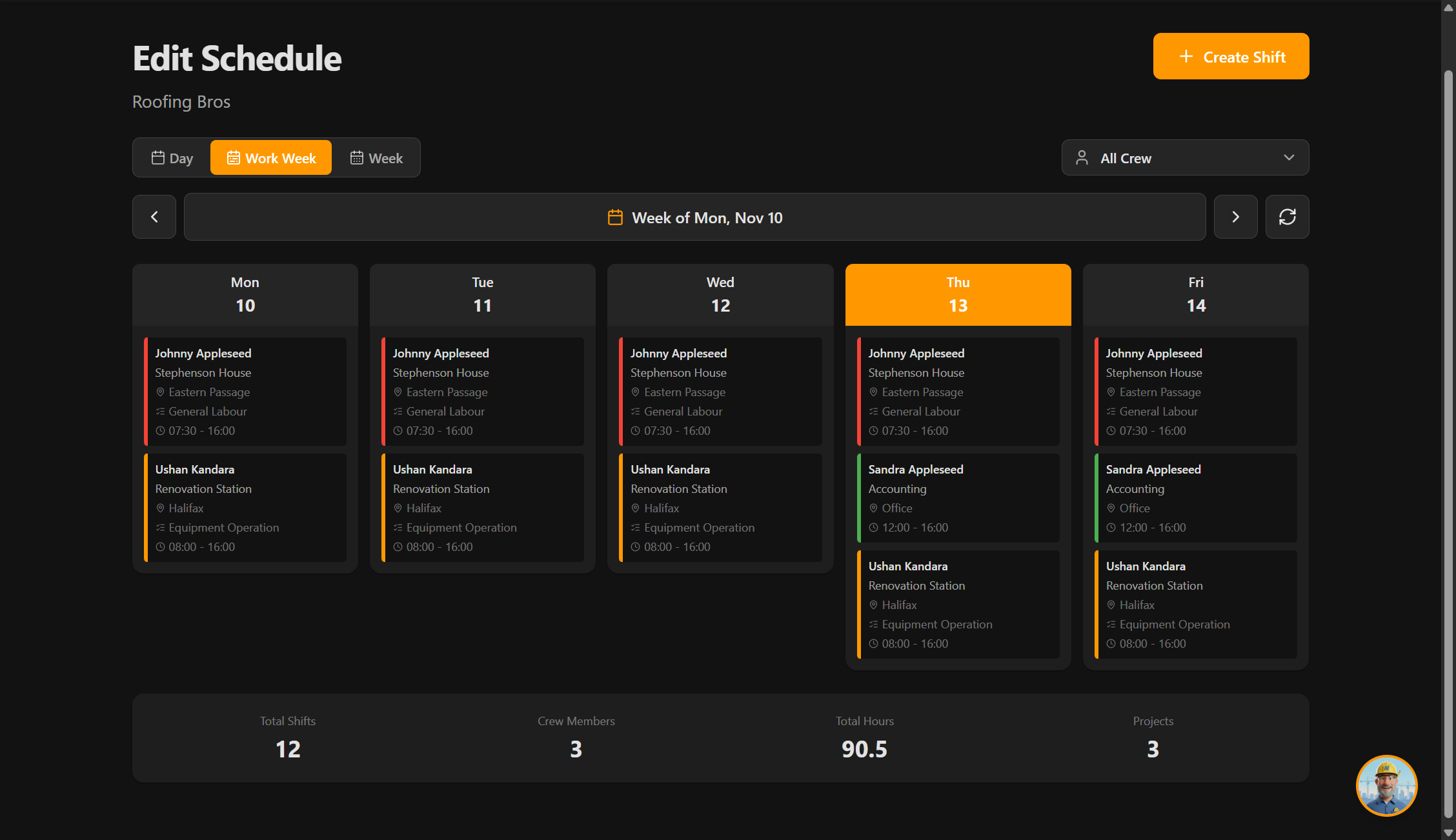
Key Elements:
- View Selector (Day / Work Week / Full Week)
- Choose how much schedule to display
- Date Navigation
- Previous Week / Next Week arrows
- "This Week" quick jump button
- Current week/day displayed in header
- Crew Member Filter
- Dropdown to filter by specific crew member
- Shows "All Crew Members" by default
- Selection persists while navigating
- Create Shift Button (Orange)
- Large, prominent button
- Opens shift creation form
- Always accessible at top
- Schedule Statistics Panel
- Total shifts this week
- Number of workers scheduled
- Active projects
- Work week hours vs. full week hours
- Shift Cards (Click-to-Edit)
- Color-coded by project
- All shift details visible
- Click any card to edit instantly
Desktop vs. Mobile Layout
Desktop:
- Week view shows columns for each day
- Side-by-side project comparison
- Statistics panel in sidebar
Mobile:
- Stacked day cards
- Expandable days in week views
- Floating Create Shift button
- Statistics at top or collapsible
Creating New Shifts
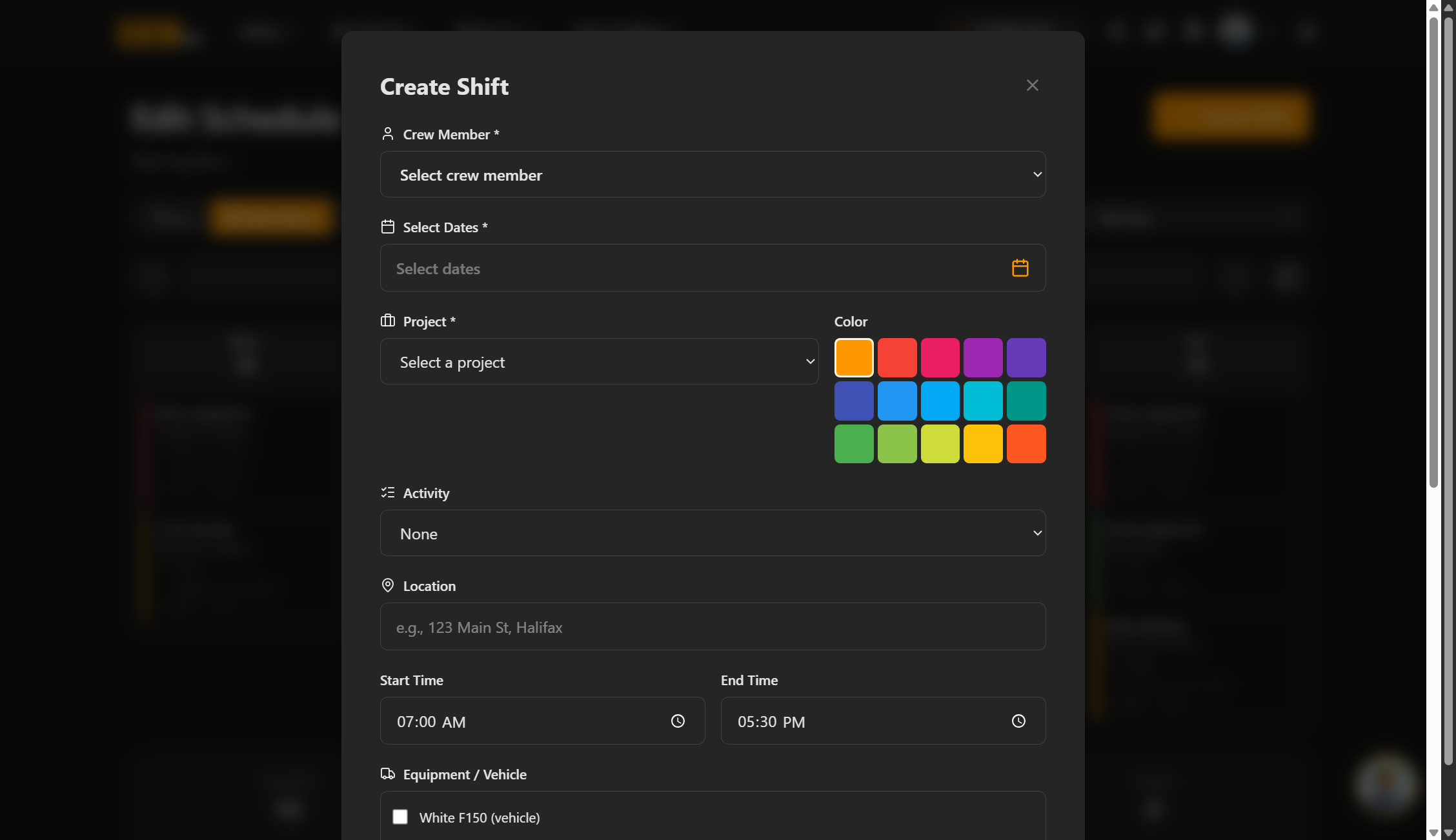
- Tap the orange "Create Shift" button at the top
- The shift creation form opens
The form includes all necessary fields to fully define a crew member's shift.
Required Fields (marked with *):
- Crew Member* (Dropdown)
- Select the crew member to assign
- Searchable list of all active crew members
- Only shows crew members in your company
- Date* (Date Picker)
- Select the shift date
- Cannot create shifts in the past
- Defaults to today's date
- Project* (Dropdown)
- Select the project/job site
- Shows all active projects
- Color indicator appears next to name
- Start Time* (Time Picker)
- When the shift begins
- 12-hour or 24-hour format (based on device)
- Example: 7:00 AM
- End Time* (Time Picker)
- When the shift ends
- Must be after start time
- Example: 3:30 PM
Optional Fields:
- Location (Text)
- Project address or specific site area
- Helps workers find the exact location
- Example: "123 Main St, Building B"
- Activity (Text)
- Crew member's specific assignment
- Example: "Framing", "Electrical rough-in", "Cleanup"
- Equipment (Multi-Select Dropdown)
- Assign multiple pieces of equipment
- Select all tools/vehicles needed
- Example: Truck #3, Scaffolding, Compressor
- Status (Dropdown)
- Confirmed (default)
- Tentative
- Indicates shift certainty
- Notes (Text Area)
- Additional instructions for the worker
- Special requirements
- Example: "Bring fall protection gear"
- Review all entered information
- Tap "Save Shift" or "Create Shift" button
- Form closes and the new shift appears on the schedule
Editing Shifts
Click-to-Edit Interface
The admin schedule features instant edit capability - no need to find an "edit" button!
To Edit a Shift:
- Click anywhere on the shift card
- The edit form opens immediately with all current values
- Make your changes
- Click "Save Changes"
What You Can Edit
Editable Fields:
- Crew member assignment (reassign shift to different person)
- Date (move shift to another day)
- Project, Location, Activity
- Start and End times
- Equipment assignments
- Status (Confirmed/Tentative)
- Notes
Deleting Shifts
To Delete a Shift:
- Click the shift card to edit
- Scroll to the bottom of the form
- Click "Delete Shift" button
- Confirm the deletion
Duplicating Shifts
Duplicate shifts to quickly create recurring schedules or assign multiple workers to the same project.
How to Duplicate
Option 1: From Shift Card
- Look for the "Duplicate" icon or button on the shift card
- Click to open duplication dialog
Option 2: From Edit Form
- Click a shift to edit
- Look for "Duplicate Shift" button in the form
- Click to open duplication dialog
Duplication Dialog
You Can Choose:
- New Crew Member: Assign the duplicated shift to a different person
- New Date: Set when the duplicated shift occurs
- All other details (project, time, location, activity, equipment, notes) are copied
Example Uses:
- Create next week's shift for the same crew member
- Assign the same project to multiple crew members
- Replicate weekly recurring shifts
Managing Projects
Projects are the job sites where your crew works. Each project has a name, location, color, and status.
Accessing Project Management
- Open Admin Settings Panel
- Go to Schedule Management
- Look for "Manage Projects" or "Projects" button/tab
- Projects list opens
Creating a New Project
To Add a Project:
- Click "Create Project" or "+ Add Project" button
- Fill in the form:
- Name* (required): Project identifier
- Location: Address or site description
- Color*: Choose a color for visual distinction
- Status: Active (default) or Inactive
- Click "Save" or "Create"
Color Coding Strategy
Colors help workers quickly identify projects on their schedule.
Best Practices:
- Unique colors: Each active project should have a distinct color
- Consistent usage: Don't change colors frequently
- Meaningful choices:
- Red/Orange for urgent projects
- Blue/Green for ongoing projects
- Yellow for short-term jobs
- Avoid similar shades: Don't use both light blue and dark blue
Deactivating Projects
Instead of deleting completed projects, mark them as Inactive.
Why Deactivate Instead of Delete:
- Preserves historical schedule data
- Keeps past shifts visible for records
- Can reactivate if project resumes
To Deactivate:
- Edit the project
- Change Status to "Inactive"
- Save
Managing Equipment
Equipment includes vehicles, tools, and machinery that can be assigned to shifts.
Accessing Equipment Management
- Open Admin Settings Panel
- Go to Schedule Management
- Look for "Manage Equipment" or "Equipment" button/tab
- Equipment list opens
Adding New Equipment
To Add Equipment:
- Click "Create Equipment" or "+ Add Equipment" button
- Fill in the form:
- Name* (required): Identifier (e.g., "Truck #5", "Forklift B")
- Type: Category for organization
- Visibility: Active (default) or Inactive
- Click "Save" or "Create"
Equipment Types
Organize equipment by category:
Common Types:
- Vehicles: Trucks, vans, trailers
- Heavy Machinery: Excavators, bobcats, forklifts, scissor lifts
- Power Tools: Drills, saws, nail guns, grinders
- Safety Equipment: Scaffolding, harnesses, barriers
- Specialty Tools: Laser levels, pipe threaders, concrete mixers
Deactivating Equipment
Mark equipment as Inactive when it's no longer available (sold, broken, retired).
To Deactivate:
- Edit the equipment
- Change Visibility to "Inactive"
- Save
Filtering and Views
Filtering by Crew Member
View a specific crew member's schedule to plan their assignments.
To Filter:
- Look for the "Crew Member" dropdown
- Select a crew member's name from the list
- The schedule filters to show only that person's shifts
Features:
- Persistent selection: Stays active as you navigate dates
- "All Crew Members" option to see everyone again
- Quick planning: Focus on one person's week
View Mode Selection
Choose how much schedule to display: Day, Work Week, or Full Week.
Day View
- Best for: Daily planning, mobile devices
- Shows: Single day with all shifts
- Navigate: Previous Day / Next Day arrows
Work Week View (Monday - Friday)
- Best for: Standard work weeks, most common view
- Shows: Five days (Mon-Fri) in stacked or grid layout
- Navigate: Previous Week / Next Week arrows
- Statistics: Work week hours calculated
Full Week View (Sunday - Saturday)
- Best for: Weekend work, complete weekly overview
- Shows: All seven days
- Navigate: Previous Week / Next Week arrows
- Statistics: Full week hours vs. work week hours
Schedule Statistics
The statistics panel shows useful metrics about your schedule.
Metrics Displayed:
- Total Shifts: Number of shifts this week/day
- Crew Members Scheduled: How many crew members have assignments
- Active Projects: Number of different job sites
- Work Week Hours: Total hours Monday-Friday
- Full Week Hours: Total hours Sunday-Saturday (if different)
Coming Soon Features
The following features are planned for future releases and will enhance schedule management:
Drag and Drop to Copy Shifts
What It Will Do:
- Click and drag a shift card to another day
- Release to create a duplicate on the new date
- Faster than using the Duplicate button
Example Use Case:
- Creating recurring weekly shifts
- Drag Monday's shift to next Monday in seconds
- Visual, intuitive workflow
Status: In development | Expected: Future release
Assign Multiple Crew Members to a Single Shift
What It Will Do:
- When creating or editing a shift, select multiple crew members at once
- All selected crew members receive identical shift details
- Saves time when assigning crews to the same project
Example Use Case:
- 5 crew members needed at Balmoral tomorrow, all 7 AM - 3 PM, all on framing
- Select all 5 crew members in one operation
- Create 5 identical shifts instantly
Status: Planned | Expected: Future release
Tips & Best Practices
Plan Ahead
- Schedule at least 2-3 days in advance to give crew members notice
- Crew members appreciate knowing their week by Friday afternoon
- Last-minute changes cause confusion and scheduling conflicts
Use Detailed Notes
- Include specific instructions in the Notes field
- Examples:
- "Bring fall protection - working above 6 feet"
- "Client will be on-site at 2 PM for walkthrough"
- "Lunch provided today"
- Crew members read notes carefully
Assign Equipment Accurately
- List all required equipment so crew members come prepared
- Include vehicles if crew members need to drive specific trucks
- Prevents delays from crew members forgetting tools
Color Code Strategically
- Assign distinct colors to active projects
- Crew members learn colors quickly and scan schedules faster
- Update inactive project colors to gray/black
Duplicate for Efficiency
- Use Duplicate Shift extensively to save time
- Standard shifts (same time, same activity) are perfect for duplication
- Faster than filling out the full form repeatedly
Filter When Planning
- Filter by crew member to see their full week
- Helps identify overbooked or underutilized crew members
- Useful for planning time off requests
Check Statistics
- Review weekly hours to ensure adequate coverage
- If work week hours are low, you may need more shifts
- Balance workload across crew members
Keep Projects Updated
- Mark completed projects as Inactive to declutter dropdowns
- Keep location information current as sites change
- Review project list monthly
Communicate Changes
- Let crew members know when major schedule changes happen
- Use the Notifications feature to announce changes
- Phone calls for same-day changes
Troubleshooting
Possible Reasons:
- Crew member is inactive in the system
- Crew member is not in your company (multi-tenant setup)
- Browser needs refresh
Solutions:
- Check that the crew member is active in User Management
- Refresh the page and try again
- Ensure crew member has a valid email in the system
- Contact support if issue persists
Solutions:
- Changes sync in real-time, but crew member may need to refresh
- Ask crew member to pull-down-to-refresh on Schedule page
- Check internet connection (yours and crew member's)
- Wait 30 seconds and check again for sync delay
Possible Reasons:
- Item is marked as Inactive
- Item was recently deleted
- Browser cache issue
Solutions:
- Check Project or Equipment Management
- Ensure item is set to Active status
- Refresh your browser
- Create the project/equipment again if needed
Solution:
- Deletion is permanent and cannot be undone
- Recreate the shift manually or use Duplicate from a similar shift
- Prevention: Consider marking shifts as "Cancelled" status instead of deleting
Possible Reasons:
- Notifications are disabled for the company
- Crew member has declined push notification permissions
- Crew member's device settings block notifications
Solutions:
- Verify notifications are enabled in Company Settings
- Ask crew members to check their device notification settings
- Crew members should allow Crew App notifications
- Test by creating a shift and checking if you receive a notification (if you're also a crew member)
Current Solution:
- Create two separate shifts for the same day
- Example:
- Shift 1: 7:00 AM - 3:30 PM (regular)
- Shift 2: 6:00 PM - 10:00 PM (overtime)
- Use Notes to indicate overtime: "Overtime shift - time and a half"
Need More Help?
If you have questions about schedule management or need assistance, here are your options: